Tray app for Windows 10 / 11
I want to see my notifications mid-game.
Yosomi reads your Windows notifications and redraws them where you decide. The overlay never takes focus, in any state. By default it does not swallow clicks either, so a notification arriving never interrupts what you are doing.
Two things standard toasts do to you mid-game
- When
They take your input
A toast appearing interferes with input state, and your controls drop out mid-game. You keep notifications on so you can see them — and seeing one costs you the controls.
- Where
You cannot move them
They are pinned to the bottom-right corner and sit on top of the game UI. Whatever is under them stays hidden for as long as they are up.
Use it with Windows silent mode
This is a prerequisite, not an option. Yosomi reads notifications rather than intercepting them, so leaving standard toasts on causes two problems.
Every notification appears twice
The standard toast banner still comes up, so the same notification shows both in the bottom-right corner and wherever you put Yosomi.
The input problem is still there
It is the standard toast banner itself that takes your input. As long as it appears, adding Yosomi does not make the symptom go away.
In silent mode, notifications skip the banner and go into the notification centre — which is exactly where Yosomi reads them from. That is what makes "mute the banner, keep the content, put it where I want" work.
Features
It never takes focus
It is a standalone topmost window that only ever draws, and it never activates. Pressing it does not bring it forward, so your input target never changes underneath you. By default a click on a notification lands on the game beneath it.
Drag a scaled map of your displays
The settings window shows your monitors in miniature. Pick up a notification card, move it, and that is where it actually appears.
Card and Bar, on as many targets as you like
Choose a rounded card or a strip along the screen edge. You can define several targets (sinks), so each monitor can use a different style.
Hand-editing the config still works
The comments in config.json are the real documentation, and saving applies immediately. Saving from the settings window keeps those comments intact.
Japanese / English, light / dark
The settings window supports both languages and both themes. The overlay is always dark — a white card on top of a game is a flashbang, so it deliberately does not follow the theme.
Notifications you can touch, opted in per target
By default notifications pass straight through. On a target you have opted in, resting the cursor on a notification for 0.3 seconds stops it from disappearing and brings up its buttons. The toggle sits next to the placement map, so you can decide it while looking at which monitor and which corner it lands on.
Arriving on screen changes nothing
It only switches once the cursor has actually rested there for 0.3 seconds. A notification appearing can never take your input. Focus is never taken, in any state.
Dismiss and Open
Dismiss clears it on the spot and removes it from the notification centre too — if it instead timed out, it stays there unread. Open brings the source app to the front.
You trade the mouse for it
While the cursor rests there, the window beneath that rectangle receives no mouse input. On a target sitting beside the game you lose nothing; on a target overlaid on the game, leave it off.
That is why it is off by default and set per target. There is deliberately no "automatically disable on the monitor running the game" — silently overriding something you explicitly turned on becomes "I turned it on and it does nothing", so the call stays in your hands.
Screenshots
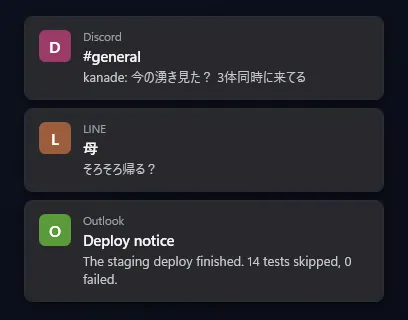
The Card style, stacked in the corner you chose 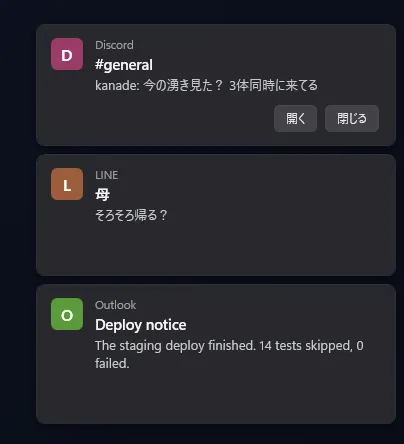
Rest the cursor and the buttons appear (opted-in targets only) 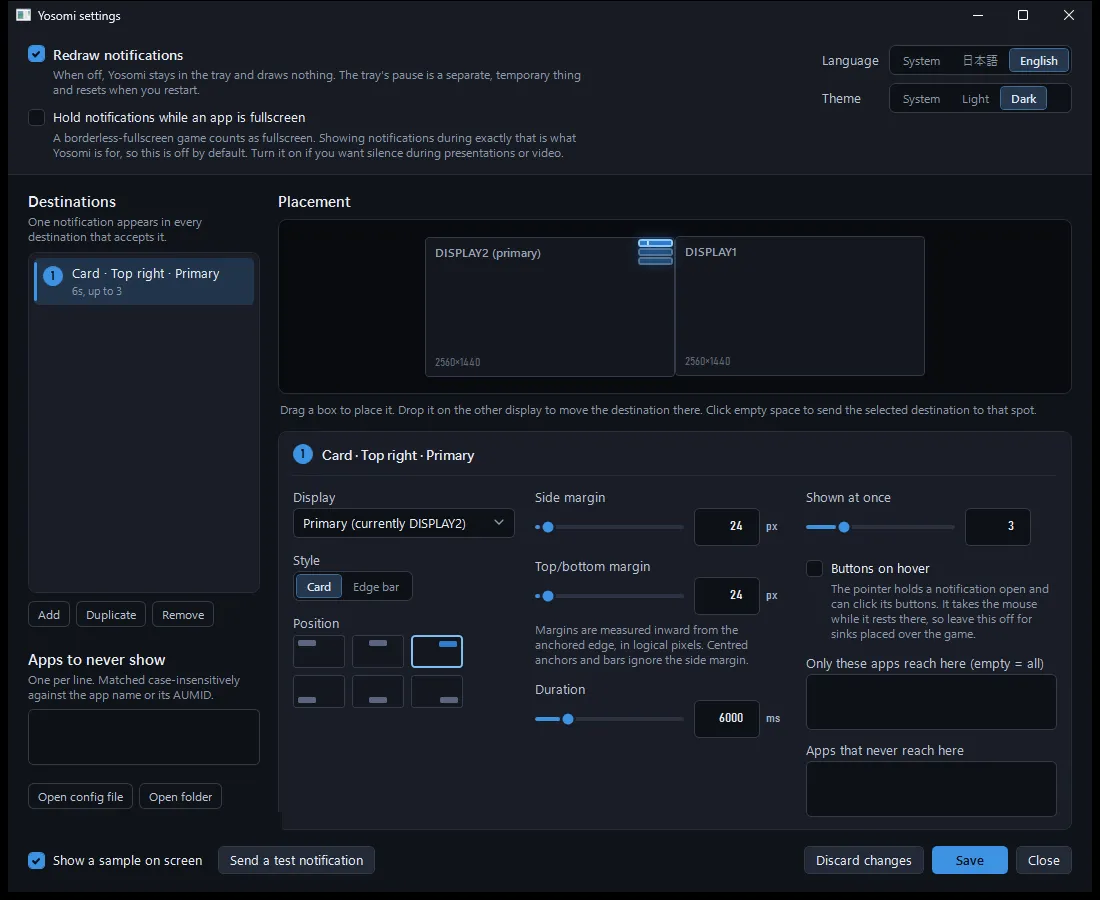
The placement map in the settings window 
The Bar style
Requirements
- OS
- Windows 10 version 1809 or later
- Prerequisite
- Windows silent mode turned on
Get it
From the Microsoft Store
FreeThe Store handles both signing and automatic updates, so no developer mode and no certificate are involved — one install button. Because a tray app keeps running, an update can otherwise sit unapplied until the next restart, so Yosomi surfaces "Update and restart" in the tray when a new version lands.
Open in the Microsoft StoreThis opens the Microsoft Store listing, where the install happens.
Getting and using Yosomi means agreeing to the following. Terms of usePrivacy policy